
Salesforce Integration
Turn conversations into Salesforce leads automatically. Your AI chatbot captures prospect information and creates new leads in Salesforce CRM.
What Is Salesforce Integration?
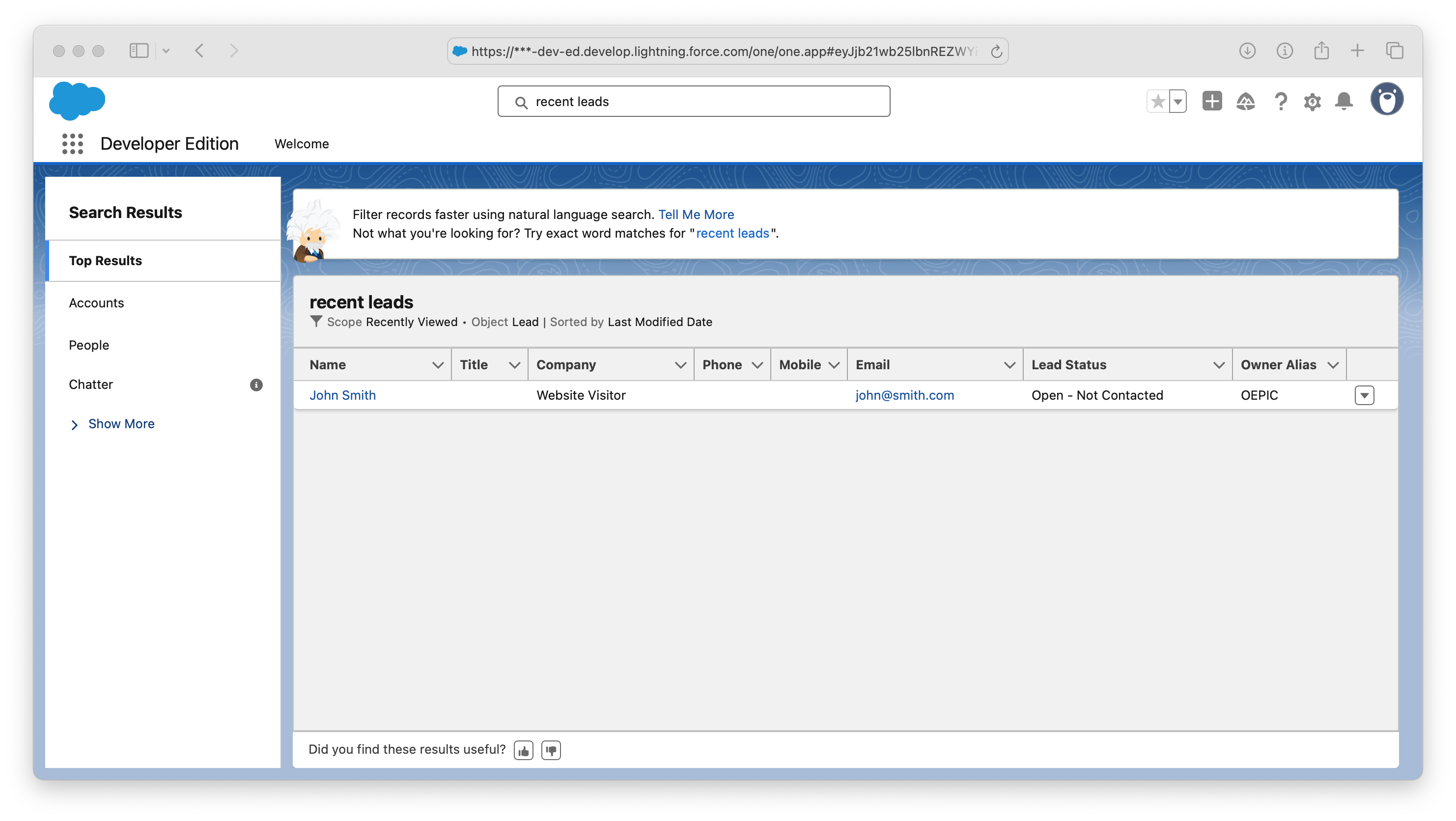
When your AI chatbot qualifies a visitor and collects their information, it automatically creates a new Lead record in Salesforce. The chat transcript, lead source, and any custom data you capture flows directly into your CRM.
Your sales team gets real-time notifications and can follow up immediately while the lead is hot.
Salesforce Integration Features
Lead & Contact Creation
Automatically create Leads or Contacts based on conversation data.
Custom Field Mapping
Map any collected data to standard or custom Salesforce fields.
Chat Transcript Attached
Full conversation history saved to the Lead record for context.
Instant Sync
Leads appear in Salesforce immediately when captured in chat.
How It Works
Connect Salesforce
Secure OAuth connection. Works with all Salesforce editions.
Map Fields
Configure which chat data maps to which Salesforce fields.
Leads Flow In
New leads created automatically with full conversation context.
What Data Gets Synced
Integration Options
Social Intents supports two ways to push leads into Salesforce. Choose the one that fits your setup:
Option A: Web-to-Lead
Simplest setup. Uses Salesforce’s built-in Web-to-Lead endpoint. No API tokens needed—just your Organization ID (oid).
Best for: Quick setup, standard lead fields only
Option B: REST API
Full control. Create Leads, attach Tasks (chat transcript), and upload files. Requires a Salesforce Connected App with OAuth.
Best for: Custom fields, transcript attachment, multi-step flows
Option A: Web-to-Lead
| Field | Value |
|---|---|
| Action Type | Auto Trigger on Chat End |
| Action Name | create_salesforce_lead |
| Collect data inputs | first_name, last_name, email, phone, company |
| HTTP Method | POST |
| API URL | https://webto.salesforce.com/servlet/servlet.WebToLead?encoding=UTF-8 |
| Content-Type | application/x-www-form-urlencoded |
Request Body (form-encoded)
oid=00DXX0000000XXXX
&first_name={{first_name}}
&last_name={{last_name}}
&email={{email}}
&phone={{phone}}
&company={{company}}
&lead_source=Live Chat
&description={{transcript}}
Replace the oid with your Salesforce Organization ID. Find it under Setup → Company Information.
Option B: Salesforce REST API
For full control — create Leads, attach the chat transcript as a Task, and optionally upload files. Requires a Salesforce Connected App.
B1. Create Lead
| Method | POST |
| URL | https://yourinstance.salesforce.com/services/data/v58.0/sobjects/Lead |
| Headers | Authorization: Bearer YOUR_ACCESS_TOKENContent-Type: application/json |
{
  "FirstName": "{{first_name}}",
  "LastName": "{{last_name}}",
  "Email": "{{email}}",
  "Phone": "{{phone}}",
  "Company": "{{company}}",
  "LeadSource": "Live Chat",
  "Description": "{{transcript}}"
}
B2. Attach Chat Transcript as a Task
Use the Lead ID returned from step B1 via {{tools.createLead.id}} to link the task:
POST /services/data/v58.0/sobjects/Task

{
  "Subject": "Chat Transcript",
  "WhoId": "{{tools.createLead.id}}",
  "Status": "Completed",
  "Description": "{{transcript}}"
}
B3. Optional: Upload Transcript as a File
Create a ContentVersion and link it to the Lead:
POST /services/data/v58.0/sobjects/ContentVersion

{
  "Title": "Chat Transcript - {{first_name}} {{last_name}}",
  "PathOnClient": "chat-transcript.txt",
  "VersionData": "BASE64_ENCODED_TRANSCRIPT"
}
Then link with a ContentDocumentLink using the returned ContentDocumentId and the Lead ID.
Recommended Settings
- Use Auto Trigger on Chat End as the Action Type so leads are created when chats finish, ensuring the full transcript is captured.
-
For multi-step REST API flows (B1 → B2 → B3), chain API calls using
{{tools.createLead.id}}to reference the Lead ID from the previous step. - For Web-to-Lead, use Salesforce’s duplicate management rules to prevent duplicates on the email field.
More CRM Actions
Fill Your Salesforce Pipeline
Connect Salesforce and let your AI chatbot capture every lead.
14-day free trial. No credit card required.