
Custom Action Buttons
Add clickable buttons to your AI chatbot responses. Let visitors book demos, download files, start trials, or trigger any action—right in the chat.
What Are Custom Buttons?
Custom buttons are clickable actions that appear in chat conversations. When a visitor clicks, they can trigger actions like opening a calendar, downloading a file, starting a free trial, visiting a specific page, or any custom action you configure.
The AI chatbot intelligently decides when to display buttons based on conversation context. For example, it can show a "Book Demo" button when a visitor expresses interest, or a "Download" button when they ask about resources.
Button Action Types
Open URL
Link to any page: pricing, docs, demos, external sites.
Download File
PDFs, brochures, whitepapers, case studies.
Open Scheduler
Launch Calendly, Cal.com, or any booking widget.
Watch Video
Embed YouTube, Vimeo, or Loom videos.
Send Message
Pre-fill a chat message when clicked.
Start Call
Click-to-call phone links.
Popular Use Cases
Sales Demos
"Book Demo" button that opens your calendar
Resource Downloads
"Download PDF" for case studies and guides
Lead Qualification
Quick-reply buttons for budget, timeline, team size
E-commerce
"View Product" and "Add to Cart" buttons
See It In Action
In this example, a hotel website chatbot offers a “Book a Room” button. When the visitor clicks it, they’re taken directly to the booking page with their dates pre-filled.

Step-by-Step Setup
To create a Custom Button action, go to your AI Chatbot Settings → AI Actions and click Add Action. Fill in the fields below.
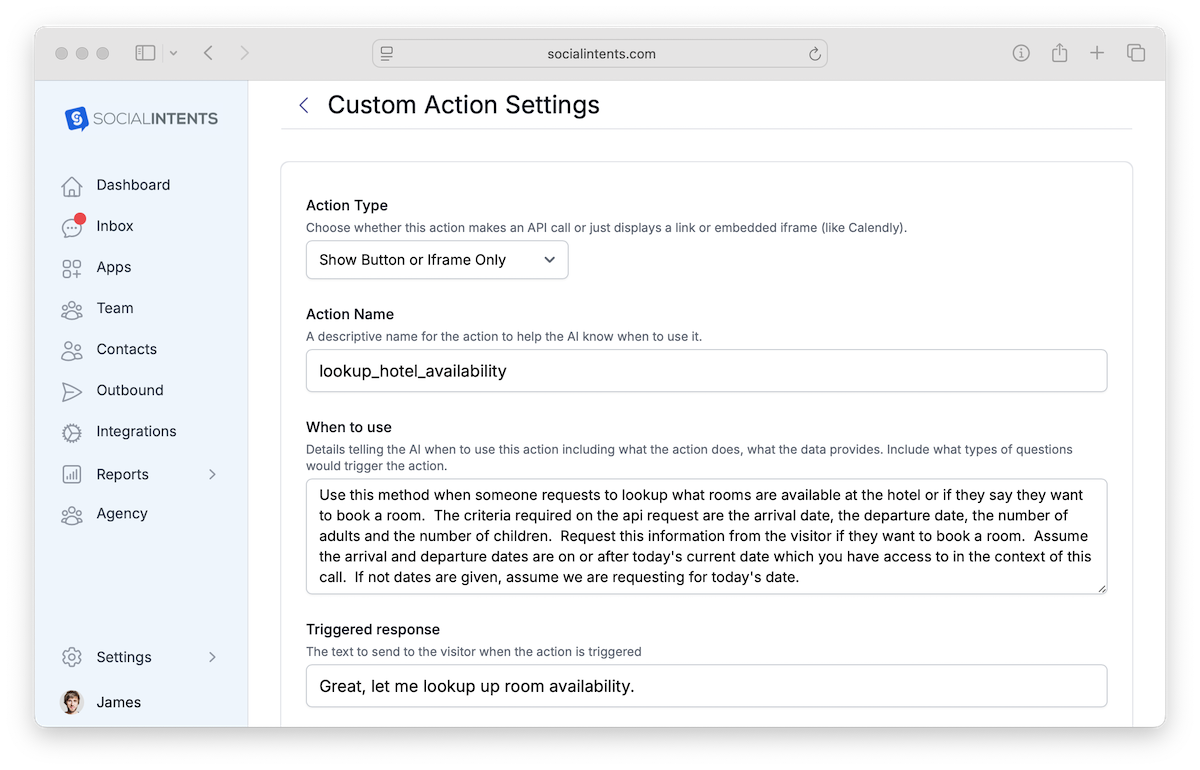
| Field | Description | Example |
|---|---|---|
| Action Type | Choose Show Button to display a clickable button in chat. |
Show Button |
| Action Name | A unique function name the AI will call. Use snake_case with no spaces. | book_hotel_room |
| When to use | Describe when the AI should trigger this action. The AI uses this description to decide intent. | When the user wants to book a hotel room |
| Triggered response | The message the chatbot sends along with the button. | Great! Click below to check availability and book your room. |
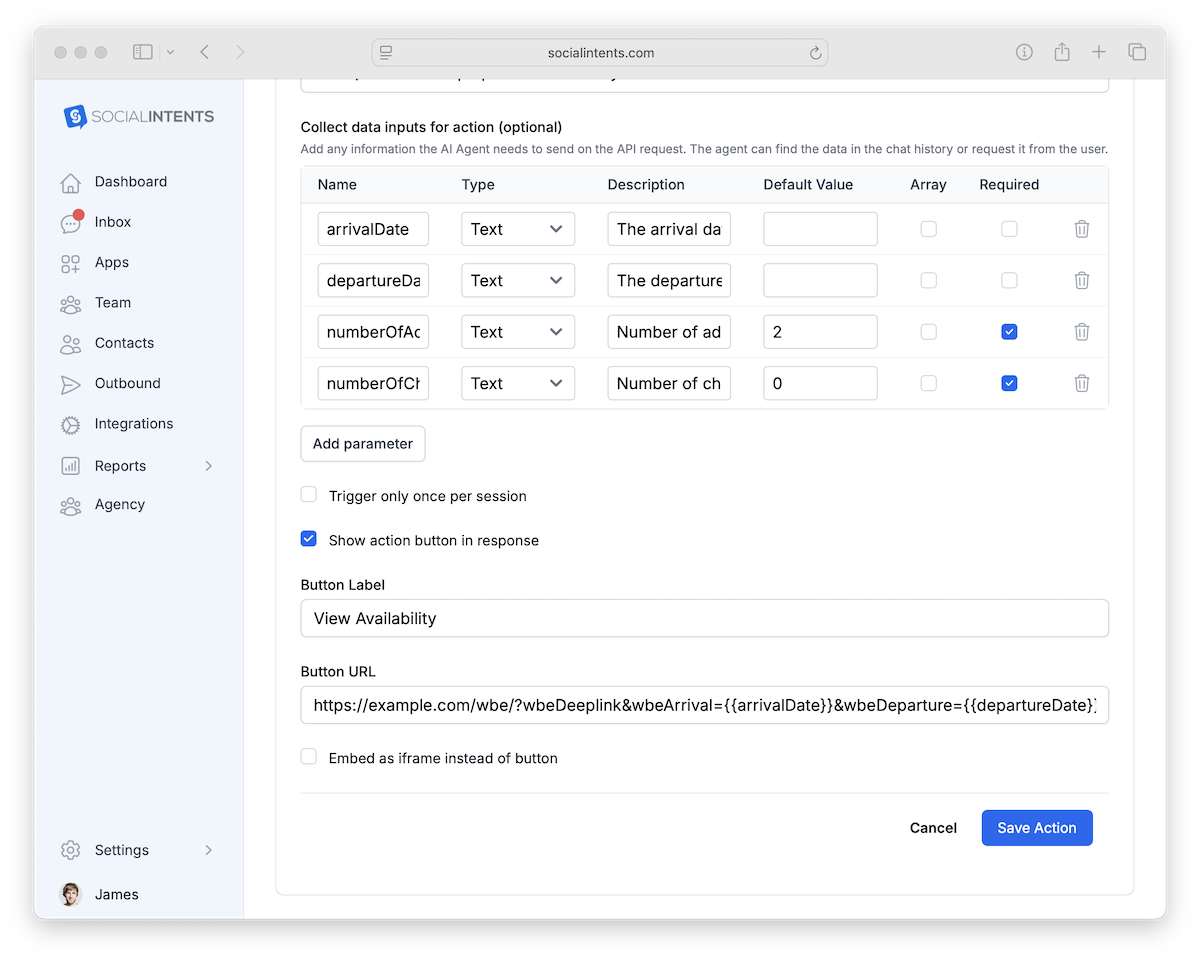
| Collect data inputs | Comma-separated list of data the AI should collect from the user before showing the button. These become template variables. | checkInDate, checkOutDate, guests |
| Button label | The text displayed on the button in the chat widget. | Book a Room |
| Button URL | The URL opened when the user clicks the button. Use {{variableName}} placeholders to pass collected data. |
https://hotel.com/book?checkin={{checkInDate}}&checkout={{checkOutDate}}&guests={{guests}} |
How the Chatbot Flow Works
Visitor expresses intent
The visitor says something like “I’d like to book a room for next Friday.” The AI matches this to your When to use description.
AI collects required data
The chatbot asks follow-up questions to gather each input you defined (e.g., check-in date, check-out date, number of guests). It won’t show the button until all data is collected.
Button appears with dynamic URL
The chatbot displays the Triggered response message along with the button. The {{variable}} placeholders in the Button URL are replaced with the collected values, so the visitor lands on a pre-filled page.